
Printer interface controls

Printer statuses
If the Status Indicator light is constant or pulsing green (not flashing), the printer is ready to use and could be in sleep mode to conserve power.

If the Status Indicator light and the Network Indicator light is constant and green, the printer is ready to use and is successfully connected to your device.

If the Status Indicator light and the Network Indicator light is constant and green, and the Data Indicator light is flashing green, new data is being transferred to the printer. This is likely the result of updating the WIFI from the Zebra Printer App to the Zebra printer. Once the light has stopped flashing, the printer should be ready to use.

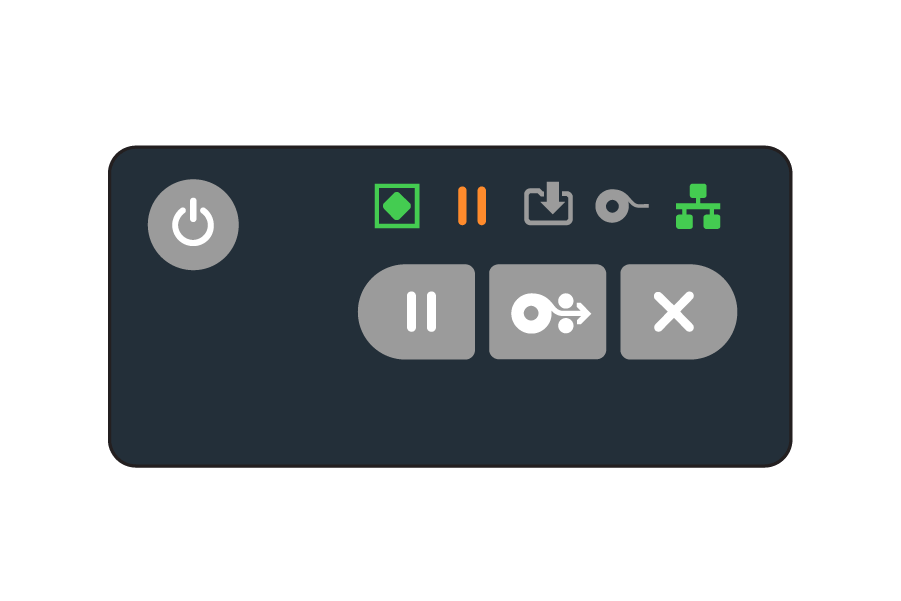
If the Status Indicator light and the Network Indicator light is constant and green, and the Pause Indicator light is orange and constant, the printer is currently paused. To resume use, press the Pause Button. The light should switch off and the printer should be ready to use.
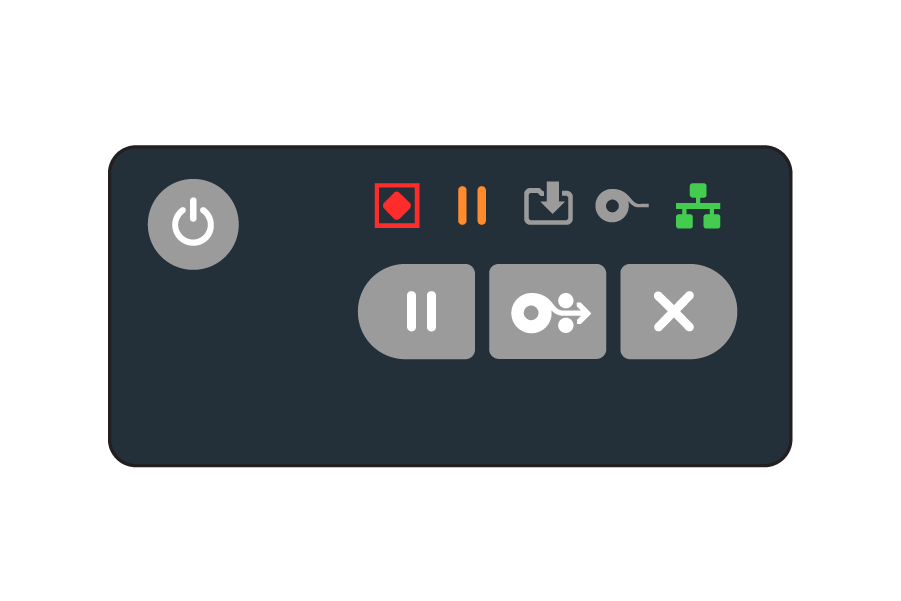
If the Status Indicator light is red, and the Pause Indicator light is orange, the printer’s cover is open and the printer cannot resume. To resume, check that the printer cover is fully closed. If the cover is fully closed, the light should switch off and the printer should be ready to use.
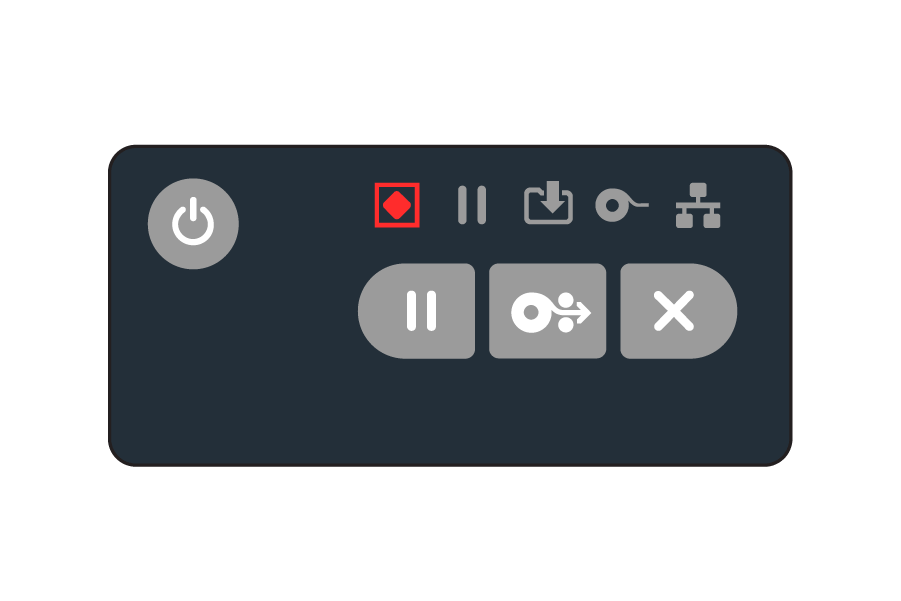
If the Status Indicator light is red, the cutter blade is bound and is not moving properly. To fix, open the printer cover and check that the components are moving properly. If all components are moving properly, close the cover and the printer should be ready to use.
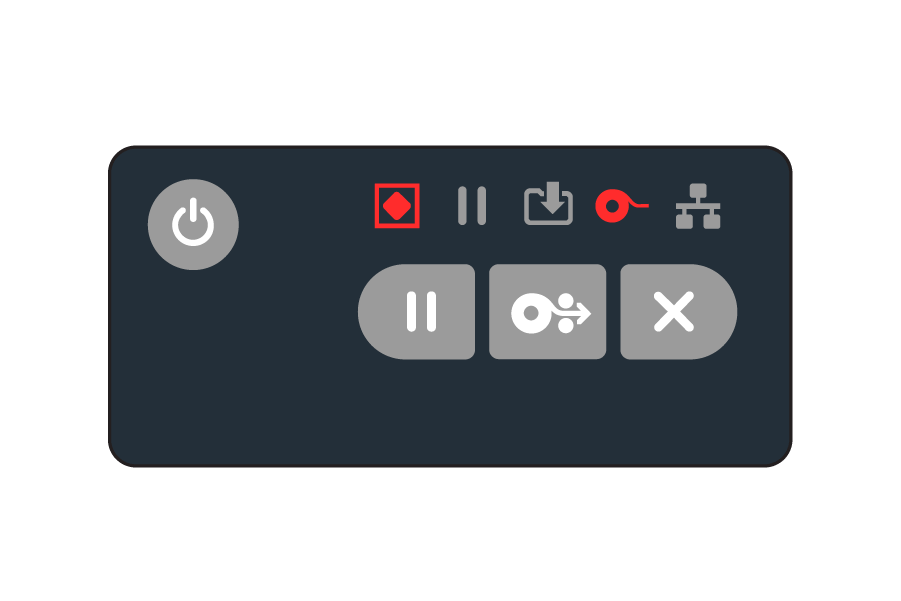
If the Status Indicator light is red, and the Supplies Indicator light is red, this means that either the labels have run out, or the ribbon has run out. To resume, check which one (or both) need replenishing, then replace either the labels or the ribbon. The light should switch off and the printer should be ready to use.
Printer connection checks fail
- First, check on the printer unit to make sure both the left most icon (Diamond within a square) and the right most icon (one block followed by two blocks underneath) are both green.
- If they are not both green, click the power button once.
- If that does not restore the button, press and hold the middle and right button at the same time until it prints a row of labels, then release.
- Go to your Zebra app icon in your toolbar at the top (Mac) or the bottom right (Windows) and right click, then click on Settings.
- Check and make sure your Zebra printer is being displayed in the Default Devices section in the Browser Print Settings window.
- If it is, or it isn’t, click Change, then click on your Zebra Printer, then click Okay. You can now close the window.
- Go back to Sowingo, add a sterilizer/chemical test, add pouches, click Print Labels, and now all connection checks should pass.